Using your COK farm accounts
Step-by-step help for account settings, shields and bulk configuration.
Get started in 3 steps
No install. No password. It lives inside Telegram.
-
Open the Mini App Launch it from our Telegram bot or from the link our support sends you.
-
Share your VIP ID The app shows your VIP ID on first open. Send it to support — we link your game accounts for you.
-
You're in control See all accounts, open shields, and set automation. Everything else runs by itself.
What it can do
Every feature below works on any phone, in your language.
See every account at a glance
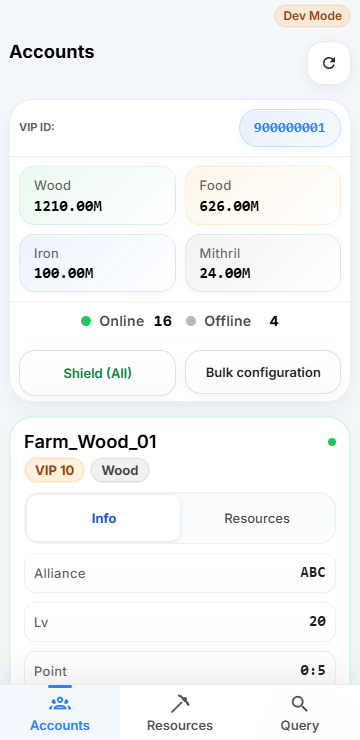
Online status, resources, gold, VIP level and shield time for all your accounts on one screen.
- Online / offline count and total resources always on top.
- Each card shows VIP, gathering resource and shield countdown.
- Take an account offline or back online with one tap.
One-tap peace shields
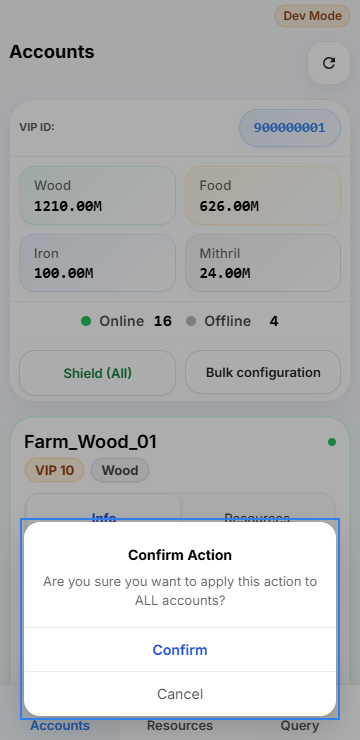
Shield (All) submits shield requests. Check each account’s result; submission does not guarantee protection.
- Batch shield confirmation. Check the subsequent results to confirm protection.
- Clear cooldown countdown on every button, no hidden waits.
- Per-account result is reported, including what was already shielded.
Automation that plays for you
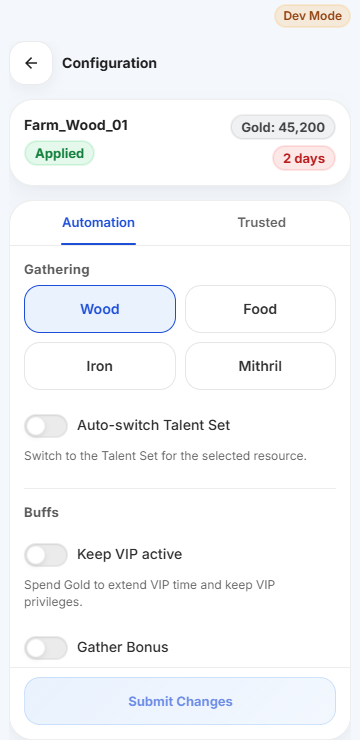
Each account gathers, keeps VIP active and renews its shield on its own — you set it once.
- Choose the resource to gather; talents can follow automatically.
- Keep VIP active and +50% gather bonus, powered by your gold.
- Auto-renew peace shield, react to attacks, scouts and rallies.
Submitted changes show their status — "submitted" and "applied" are never confused, so you always know when it's live.
Configure multiple accounts at once
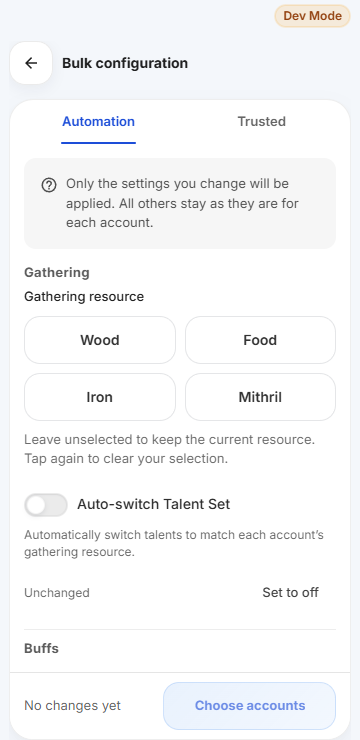
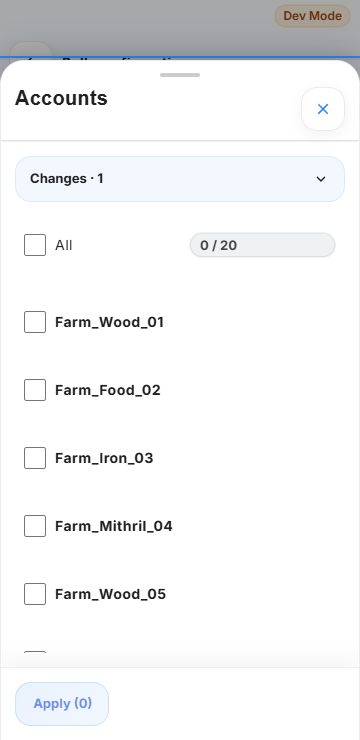
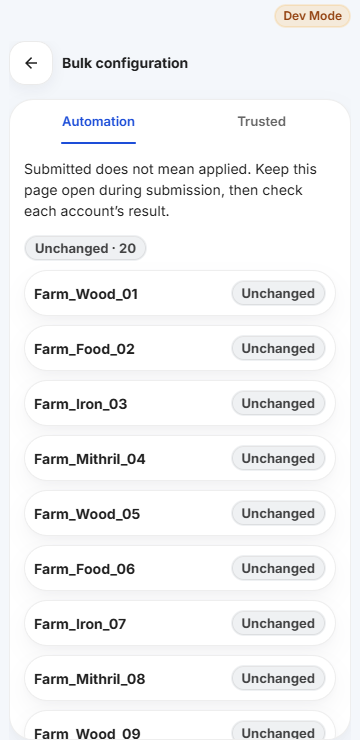
Set the rules first, then pick exactly which accounts get them. Nothing else is touched.
- Use the switches to choose what to enable or disable. Only settings you change are applied; use Undo to leave a setting unchanged for each account.
- Review your changes and the target list together before applying.
- Results per account: applied, syncing, failed or already set — with a retry for failures.
- A grey switch marked Unchanged keeps each account’s value. Use Set to off to explicitly disable it, or Undo after a change to leave it unchanged.
Trusted players: no shield for friends
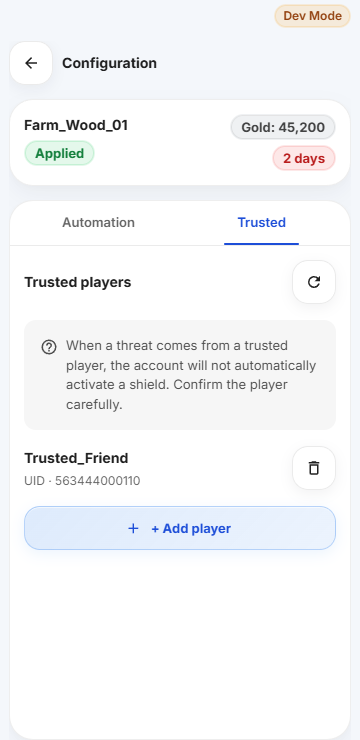
When a trusted player attacks, your account does not waste a shield. Allies and farm partners stay free to hit.
- Search by player name — no UID needed. A single account uses its own kingdom; for bulk configuration, choose the kingdom before searching.
- Add to one account, or append to many accounts at once without overwriting.
- Remove anyone anytime from the account's own page.
- Exact full-name matching only, within the selected kingdom’s top 150 power ranking. Players outside that list may not be found.
The trusted list explains that threats from trusted players do not trigger an automatic shield. This does not remove an existing shield or turn off scheduled shield renewal.
Resource stock & orders
See where resources are stocked across servers and place orders right from the app.
- Per-server stock for food, wood, iron and mithril.
- Enter your contact details, or tap the Telegram phone button and approve sharing your number to fill it in.
- Track every order from pending to completed.
Common questions
How do I link my game accounts?
Send your VIP ID to support to link your accounts. Support will confirm when linking is complete.
I changed a setting. Why doesn't it apply instantly?
Settings are submitted to the game and applied in the background. The status chip on each account shows "Applying" until it's live. Submitted never means applied — you'll see the difference clearly.
What does "offline" mean for an account?
Offline accounts are disconnected from automation: no gathering, no auto-shield. Bring them back online anytime from the account card.
Which languages are supported?
The app follows your Telegram language: English, Español, Português or Русский.
Something looks wrong. Who do I talk to?
Message our support on Telegram — include your VIP ID and a screenshot, and we'll sort it out.